Quick Answer
Your Shopify store gets traffic but no sales because visitors are arriving without buying intent, your site isn’t giving them a reason to trust or act, or something in the path from landing page to checkout is broken. This usually comes down to a mix of the wrong traffic sources, weak product pages, slow load times, unclear pricing or shipping information, and friction at checkout. Fixing it starts with Shopify store optimization: reviewing where your visitors come from, what they see first, and where they drop off. Most stores don’t need more traffic. They need the traffic they already have to convert better, which is exactly what proper Shopify SEO services and conversion audits are built to fix.
Introduction
You check your analytics and the numbers look decent. Sessions are climbing. Maybe you’re running ads, maybe your blog posts are ranking, maybe an influencer mentioned your product. But the sales dashboard tells a different story.
This is one of the most frustrating spots to be in as a store owner. You’re not failing to get attention. You’re failing to turn that attention into revenue. And that gap between traffic and sales usually has specific, fixable causes.
This article walks through why it happens, how to diagnose it on your own store, and what to actually do about it.
What’s Really Causing Traffic Without Sales in Your Shopify Store?
Before jumping into fixes, it helps to understand that “traffic but no sales” is not one problem. It’s a symptom of several possible issues, and the fix depends on which one applies to you.
Here are the most common root causes:
- – Low-intent traffic. People are visiting but weren’t looking to buy in the first place.
- – Mismatched expectations. The ad, search result, or social post promised something the landing page doesn’t deliver.
- – Weak product pages. Missing details, poor images, or no clear value proposition.
- – Trust gaps. No reviews, unclear return policy, no visible security signals.
- – Technical friction. Slow pages, broken mobile layout, confusing navigation.
- – Checkout drop-off. Unexpected shipping costs, too many steps, limited payment options.
- – Pricing or shipping surprises. Costs that only appear at the final step.
Most stores are dealing with two or three of these at once, not just one. That’s why a scattered fix, like just adding a discount popup, rarely moves the needle on its own.
How to Check Your Shopify Store’s Traffic Quality
Before touching your product pages, look at where your traffic is actually coming from. Not all visitors are equal, and this step alone often explains a big part of the problem.
In Shopify Analytics or Google Analytics 4, check:
1. Traffic source breakdown. Organic search, paid ads, social, direct, email, referral.
2. Bounce rate by source. A channel with a high bounce rate is sending people who weren’t ready to browse your catalog.
3. Average session duration. Very short sessions on product pages usually mean the page didn’t hold attention.
4. Device split. If most traffic is mobile and your conversion rate on mobile is much lower than desktop, you likely have a mobile usability issue.
For example, a store running broad-match keyword ads might pull in a lot of clicks from searches that are only loosely related to the product. Those visitors bounce fast because they weren’t looking for what’s being sold. A store ranking for informational blog content might get readers who are still researching, not ready to buy yet.
This is where good Shopify SEO services matter beyond just rankings. Ranking for the wrong keywords, or attracting clicks that don’t match buyer intent, inflates your traffic numbers without helping your revenue.
Step-by-Step: Diagnosing and Fixing Low Shopify Conversions
Here’s a practical order to work through this, rather than guessing at fixes.
Step 1: Segment your traffic and conversion rate by source
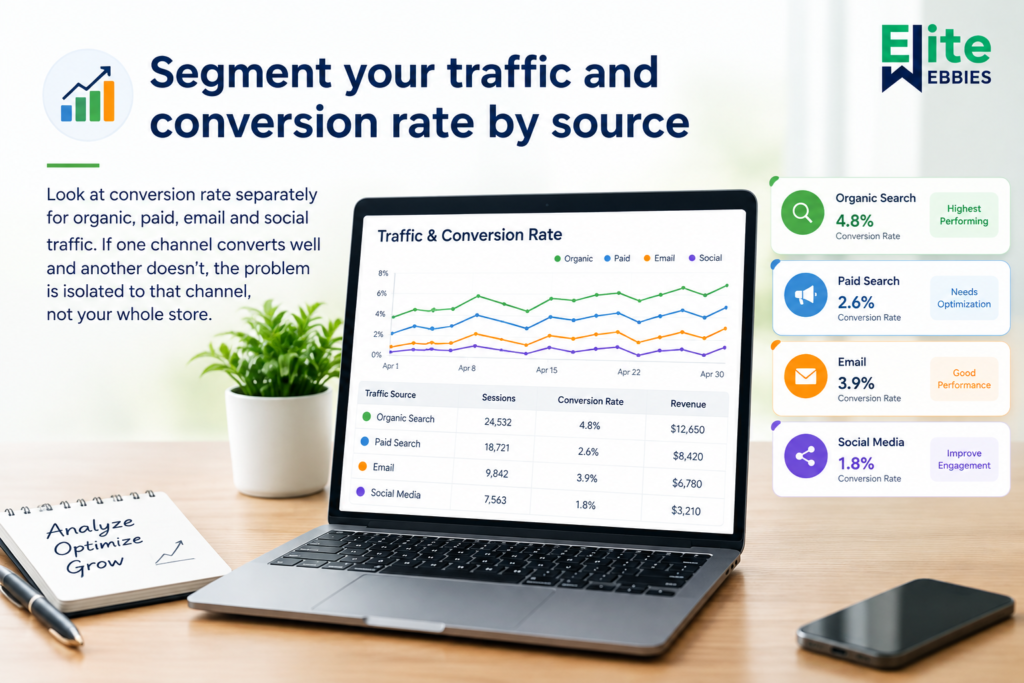 Look at conversion rate separately for organic, paid, email, and social traffic. If one channel converts well and another doesn’t, the problem is isolated to that channel, not your whole store.
Step 2: Watch actual user behavior
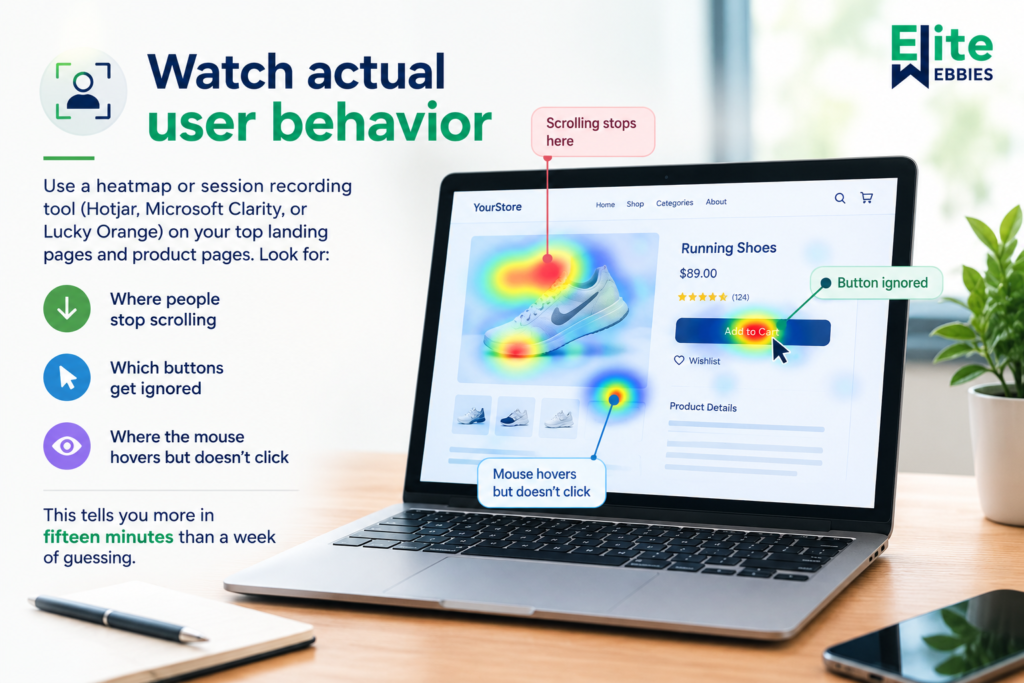
Use a heatmap or session recording tool (Hotjar, Microsoft Clarity, or Lucky Orange) on your top landing pages and product pages. Look for:
- – Where people stop scrolling
- – Which buttons get ignored
- – Where the mouse hovers but doesn’t click
This tells you more in fifteen minutes than a week of guessing.
Step 3: Audit your top product pages
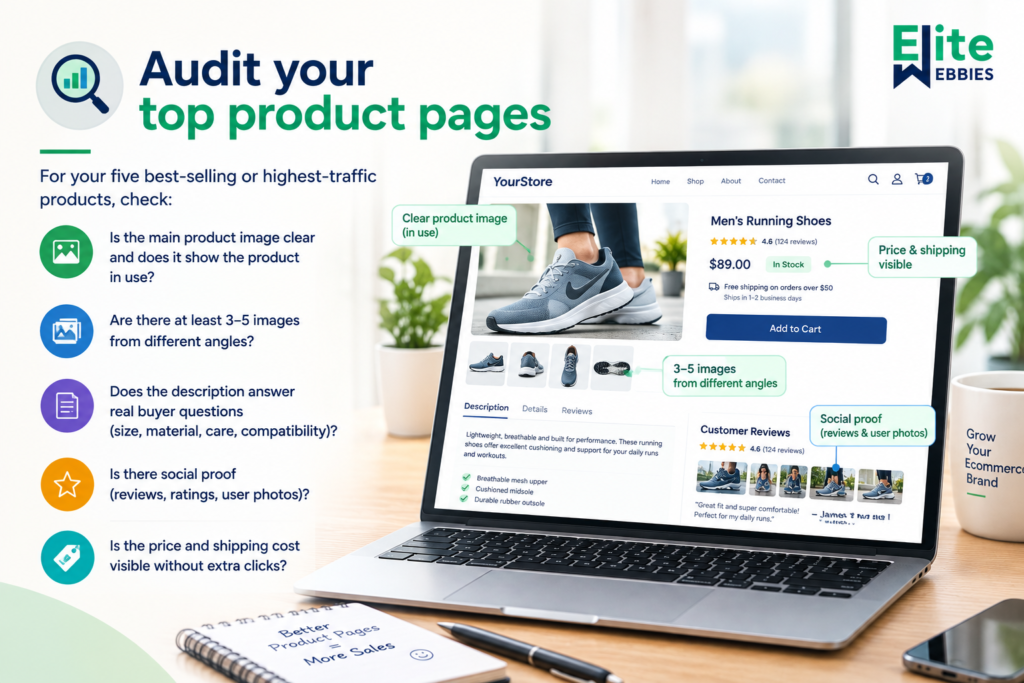
For your five best-selling or highest-traffic products, check:
- – Is the main product image clear and does it show the product in use?
- – Are there at least 3–5 images from different angles?
- – Does the description answer real buyer questions (size, material, care, compatibility)?
- – Is there social proof (reviews, ratings, user photos)?
- – Is the price and shipping cost visible without extra clicks?
Step 4: Test your checkout as a customer
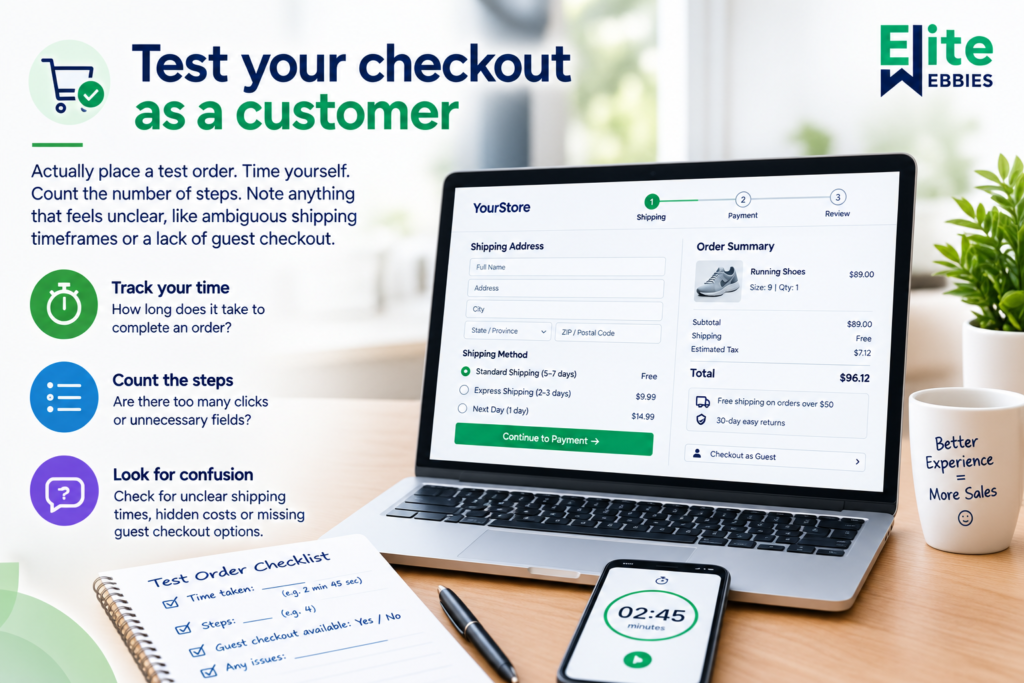 Actually place a test order. Time yourself. Count the number of steps. Note anything that feels unclear, like ambiguous shipping timeframes or a lack of guest checkout.
Step 5: Check page speed
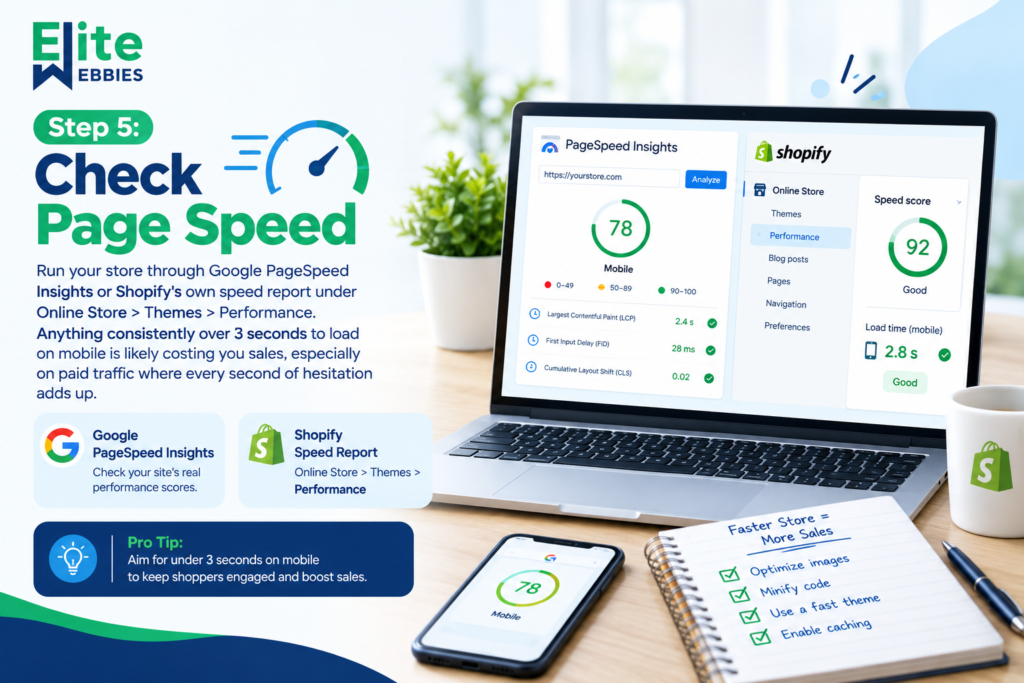
Run your store through Google PageSpeed Insights or Shopify’s own speed report under Online Store > Themes > Performance. Anything consistently over 3 seconds to load on mobile is likely costing you sales, especially on paid traffic where every second of hesitation adds up.
Step 6: Review your value proposition above the fold
When someone lands on your homepage or a collection page, can they tell within five seconds what you sell, who it’s for, and why they should buy from you instead of a competitor?
Common Mistakes Shopify Store Owners Make
A few patterns show up again and again across stores struggling with this exact issue.
1. Chasing more traffic instead of fixing conversion first. Spending more on ads to compensate for a leaky funnel just means losing money faster. Fix the leak before adding more water.
2. Copying competitor product descriptions. Generic, copied, or manufacturer-supplied descriptions don’t answer the specific questions your visitors have, and they hurt SEO through duplicate content.
3. Ignoring mobile experience. Most Shopify traffic is mobile. A theme that looks great on desktop but has cramped buttons or slow-loading images on mobile will quietly bleed sales.
4. No urgency or clarity on stock and shipping. Vague delivery estimates make buyers hesitate, especially for anything with a longer processing time.
5. Too many exit points. Pop-ups, unrelated upsells, and cluttered navigation give visitors too many reasons to leave before they buy.
6. Treating SEO and conversion as separate projects. Ranking well and converting well are connected. Traffic that matches search intent, landing on a page built to answer that intent, converts far better than traffic pointed at a generic homepage.
Example Scenario: Turning Traffic Into Sales
To make this concrete, here’s a common pattern seen across Shopify stores facing this exact issue, walked through as a working example rather than a specific client case.
1. Problem: A store sells a mid-priced home goods product. Traffic from organic search and social has grown steadily over several months, but the conversion rate stays well below the typical range for the category. The store owner assumes the issue is a lack of traffic and increases ad spend, but sales don’t move proportionally.
2. Strategy: Instead of adding more traffic, the focus shifts to auditing the existing funnel:
- – Traffic is segmented by source to find where drop-off is highest.
- – Session recordings are reviewed on the top three product pages.
- – Checkout is tested manually to check for friction points.
- – Page speed is measured on mobile specifically, since mobile makes up the majority of sessions.
3. Implementation: The audit reveals that shipping costs only appear at the final checkout step, several product images are low resolution on mobile, and the product description doesn’t address a common concern (whether the product fits a specific use case). These are addressed directly: shipping information is added earlier in the funnel, images are optimized and re-uploaded, and descriptions are rewritten to answer the actual question visitors are searching for.
4. Result: With the friction points removed, more of the existing traffic converts without any increase in ad spend or traffic volume. The store doesn’t need to attract new visitors to see the impact. It needs the visitors it already has to complete the purchase.
5. Key lesson: Traffic growth and conversion growth are separate problems, and solving the wrong one first wastes both time and budget. Fixing friction in an existing funnel is often faster and cheaper than acquiring more visitors.
Practical Tips for Shopify Store Optimization
- – Match landing pages to search or ad intent. If someone clicks an ad for “waterproof hiking boots,” send them to that specific product or collection, not your general homepage.
- – Add real reviews, not just star ratings. Written reviews with specific details build far more trust than a number alone.
- – Keep checkout to as few steps as possible. Enable guest checkout and show accepted payment methods early.
- – Show shipping costs and delivery windows before checkout. Surprise costs at the last step are one of the most common reasons carts get abandoned.
- – Compress and properly size images. Large, uncompressed images are one of the biggest causes of slow Shopify stores.
- – Write product descriptions around real questions. Look at customer service emails or reviews for the questions people actually ask, and answer them directly in the copy.
- – Use exit-intent tools carefully. A single, relevant offer works better than three stacked pop-ups.
- – Recheck your Shopify SEO strategy for intent match, not just volume. Ranking for a high-volume keyword that doesn’t match your product won’t convert, no matter how much traffic it brings.
Tools and Resources for Shopify SEO Services and Conversion Optimization
A few tools consistently help with this kind of diagnostic work:
- – Google Analytics 4 – for traffic source and behavior data
- – Google Search Console – to check which search queries actually bring in your organic traffic
- – Shopify’s built-in analytics and speed reports – for a quick baseline check
- – Microsoft Clarity or Hotjar – free or low-cost session recording and heatmaps
- – Google PageSpeed Insights – for detailed load time diagnostics
- – Shopify App Store review and speed optimization apps – useful once you know exactly which pages need work
If auditing all of this feels like more than you have time for, working with a team that offers dedicated Shopify SEO services and conversion audits can help you find the specific leaks faster, rather than guessing at fixes one at a time. Agencies like Elite Webbies, a Shopify SEO Agency and Digital Marketing Agency, typically run this kind of audit as a starting point before recommending any changes, which keeps the process focused on your actual data rather than generic best practices.
Frequently Asked Questions
1. Why is my Shopify store getting visitors but no sales?
This usually happens because visitors don’t have strong buying intent, the landing page doesn’t match what brought them there, or something in your product pages or checkout creates friction. Start by checking traffic quality by source, then review your product pages and checkout flow for gaps in trust, clarity, or speed.
2.What is a good conversion rate for a Shopify store?
Conversion rates vary by industry, but many Shopify stores fall somewhere between 1% and 3%. If your rate is well below that and your traffic is relevant to your product, it’s worth auditing your product pages, page speed, and checkout process before assuming your traffic is the problem.
3. How do I know if my Shopify traffic is low quality?
Check bounce rate and session duration by traffic source in Google Analytics 4. High bounce rates and very short sessions from a specific channel usually mean that traffic isn’t matched to buyer intent, even if the overall visitor numbers look strong.
4. Does Shopify SEO help with sales or just traffic?
Good Shopify SEO targets keywords that match buyer intent, not just search volume, which means it can directly support sales, not only visits. Ranking for the right terms and building pages that answer real buyer questions brings in visitors who are more likely to convert.
5. What’s the fastest way to fix a Shopify store with no sales?
Test your own checkout as a customer, check page speed on mobile, and review your top product pages for missing details, trust signals, and clear pricing. These three checks usually reveal the most immediate and fixable sources of lost sales.
Conclusion
Traffic without sales is rarely a marketing problem alone. It’s usually a mix of mismatched intent, weak trust signals, and friction somewhere between landing page and checkout. The fix isn’t more traffic. It’s proper Shopify store optimization: understanding where your visitors come from, what they see, and where they give up.
Start with your traffic sources, test your own checkout, and fix the clearest friction points first. Small, specific changes to product pages, page speed, and checkout clarity tend to produce results faster than broad, unfocused efforts.